Rackast
Windows screen recorder with automatic zoom, smooth cursor motion, and local AI captions
Gallery
About Rackast
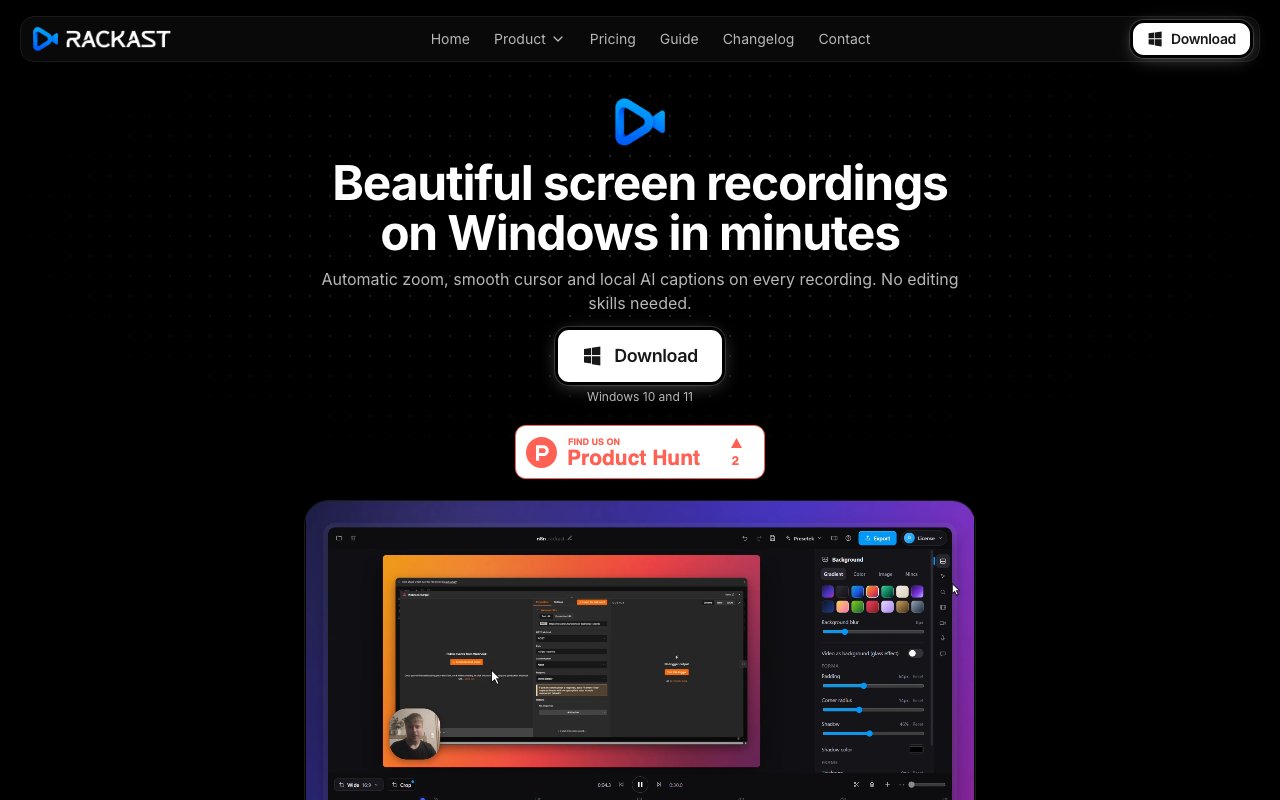
Rackast is a screen recording application for Windows that automates the polish usually reserved for post-production editing. It tracks your mouse movements, zooms in on relevant screen areas automatically as you click through interfaces, smooths out jerky cursor movements into fluid glides, and generates captions locally using AI transcription. The goal is professional-looking screencasts that require minimal manual editing and no cloud processing.
The automatic zoom is the headline feature and the primary reason to consider Rackast over simpler screen recorders. As you click through an interface, the software follows your actions and dynamically zooms to keep the focus area visible and clear. This matters most when recording on high-resolution monitors where UI elements look tiny in a full-screen capture. Instead of leaving viewers squinting at small buttons or trying to follow a cursor that's barely visible against a massive desktop, the recording crops and scales intelligently during capture. The result is a video where the viewer's attention stays on whatever you're demonstrating without manual keyframing or cropping in an editor.
Cursor smoothing addresses another common screencast problem that most people don't realize they have until they watch their own recordings. Real mouse movement tends to be jerky, darting from point to point in ways that look amateur and distracting on playback. Rackast converts those motions into fluid glides with visible click ripples that indicate when you've clicked, giving recordings a deliberate, guided feel without requiring you to consciously slow down while recording. The visual effect mimics the kind of polished cursor behavior you see in professionally produced software tutorials.
Webcam and audio integration are built in without requiring external software. Your webcam appears as a floating bubble overlay that you can position anywhere on the screen, providing that picture-in-picture presenter view common in course content and product demos. The recorder captures both microphone input and system audio simultaneously, balancing them so viewers hear your voice alongside any application sounds, notification pings, or video playback happening on screen.
Captions run through OpenAI's Whisper model entirely on your machine. There's no cloud upload, no transcription queue, and no per-minute billing. Your audio never leaves your computer, which matters for recordings that contain sensitive information or proprietary content. The captions appear in the final video and can be edited line by line before export, so you can fix any transcription errors without reprocessing the entire recording. For anyone making tutorials or product demos where accessibility matters, this eliminates a separate captioning step that typically requires either manual transcription or a paid service.
Export options cover the formats most creators actually need. You can output to MP4 with H.264 encoding for maximum compatibility, WebM with VP9 for web-native playback, or GIF for short loops and social media. Resolution goes up to 4K, and frame rates go up to 120 fps at lower resolutions, dropping to 60 fps at 4K due to the processing load. Bitrate presets labeled Balanced, High, and Maximum let you trade off file size against visual quality, or you can fine-tune manually if you have specific requirements.
Everything processes locally on your machine. There's no cloud rendering, no uploads to external servers, no waiting in a processing queue behind other users. Once you stop recording, the software handles the polish and outputs the final file. The tradeoff is that your hardware needs to be capable of handling the processing load, particularly for 4K recordings or when using the AI captioning feature.
Pricing is straightforward with no free tier. Monthly subscriptions cost $19.99, and yearly drops to $7.99 per month billed annually at $95.88, representing about 60% savings for the annual commitment. Each license covers two device activations, so you can run it on both your desktop and laptop without buying a second license. Payments go through Polar, and there's a seven-day money-back guarantee if the software doesn't work out. The paid-only model means no watermarks on your exports and no artificial feature limits separating free users from paying customers.
Rackast runs on Windows 10 and Windows 11 only. There's no Mac or Linux version available, so if you're on those platforms, this isn't an option. For Windows users making product demos, software tutorials, social media clips, bug reports, or course content, Rackast offers a focused set of automation features that address the specific annoyances of screencast production without burying you in general-purpose video editing complexity.
Key Features
- Automatic click-following zoom
- Smooth cursor motion with click ripples
- Local AI captions via Whisper
- Webcam bubble overlay
- Export to MP4, WebM, and GIF
- Up to 4K resolution at 60 fps
Pros & Cons
What we like
- Zoom automation reduces post-production work
- Captions run locally with no cloud upload
- All features included in a single plan
- No watermarks or artificial limits
Room for improvement
- Windows only, no Mac or Linux support
- No free tier to test before buying
- Higher monthly cost than simpler recorders
- Requires decent hardware for local processing
Frequently Asked Questions
What is Rackast?
Is Rackast free?
What platforms does Rackast support?
Are the captions processed in the cloud?
Best For
Featured in
Alternatives to Rackast
View all
Apatero AI
The creator studio for AI image, video, audio, 3D, and avatars, now at apatero.ai.
Apatero Studio
Creator studio for AI image, video, audio, 3D, and avatars. Every model worth using, in one workspace.
Melodex
Turn your idea into an AI-generated music video

Speel
AI UGC video generator that makes realistic AI avatars hold and talk about your product for ads
Our take
Tool Index Editorial · Oct 2026· 3.0/5
Rackast is a Windows screen recorder that automates the polish most useful for software demos. Click-following zoom, cursor smoothing, webcam and system audio capture, local Whisper captions, and exports up to 4K cover a focused creator workflow without requiring a general video editor. Local rendering and editable captions are meaningful advantages for recordings that shouldn't be uploaded to a transcription service.
Rackast costs $19.99 monthly or $95.88 yearly, covers two devices, and has no free tier, though the site mentions a seven-day money-back period. It is Windows-only and demanding formats will lean on the user's hardware. We also found a visibly labeled placeholder testimonial on a use-case page, which weakens confidence in the marketing. The feature set is sensible, but buyers have to pay before they can judge the automation on their own material.
Editorial opinion from the Tool Index team, written from the public product pages. Not a user review.
Reviews (0)
Badge builder
Add Rackast to your website
Choose a badge style and size, preview it here, then copy the generated HTML. Badge images are self-contained SVGs and do not require an external script.

<a href="https://toolindex.net/tools/rackast?ref=badge" target="_blank" rel="noopener">
  <img src="https://toolindex.net/badge/rackast/medium.svg" alt="Rackast - Listed on Tool Index" width="180" height="50" />
</a>How to use the badge
- 1. Pick the style, size, and theme that fit your layout.
- 2. Copy the generated HTML from the code block.
- 3. Paste it into your footer, homepage, or press page.
Standard badge available
The standard listing badge is available now. Score and circle badges are limited to tools currently ranked in the top 10 of a category.
Badge clicks return visitors to this profile with a referral tag so the source remains identifiable.
Related Tools
Apatero AI
The creator studio for AI image, video, audio, 3D, and avatars, now at apatero.ai.
LocalClip
Local-first AI video clipper for Mac that turns long videos into vertical clips
Melodex
Turn your idea into an AI-generated music video
Apatero Studio
Creator studio for AI image, video, audio, 3D, and avatars. Every model worth using, in one workspace.
Work on Rackast? Request listing access or correction