
Terminal Code
VS Code running entirely inside your terminal, no browser or GUI required
Gallery
About Terminal Code
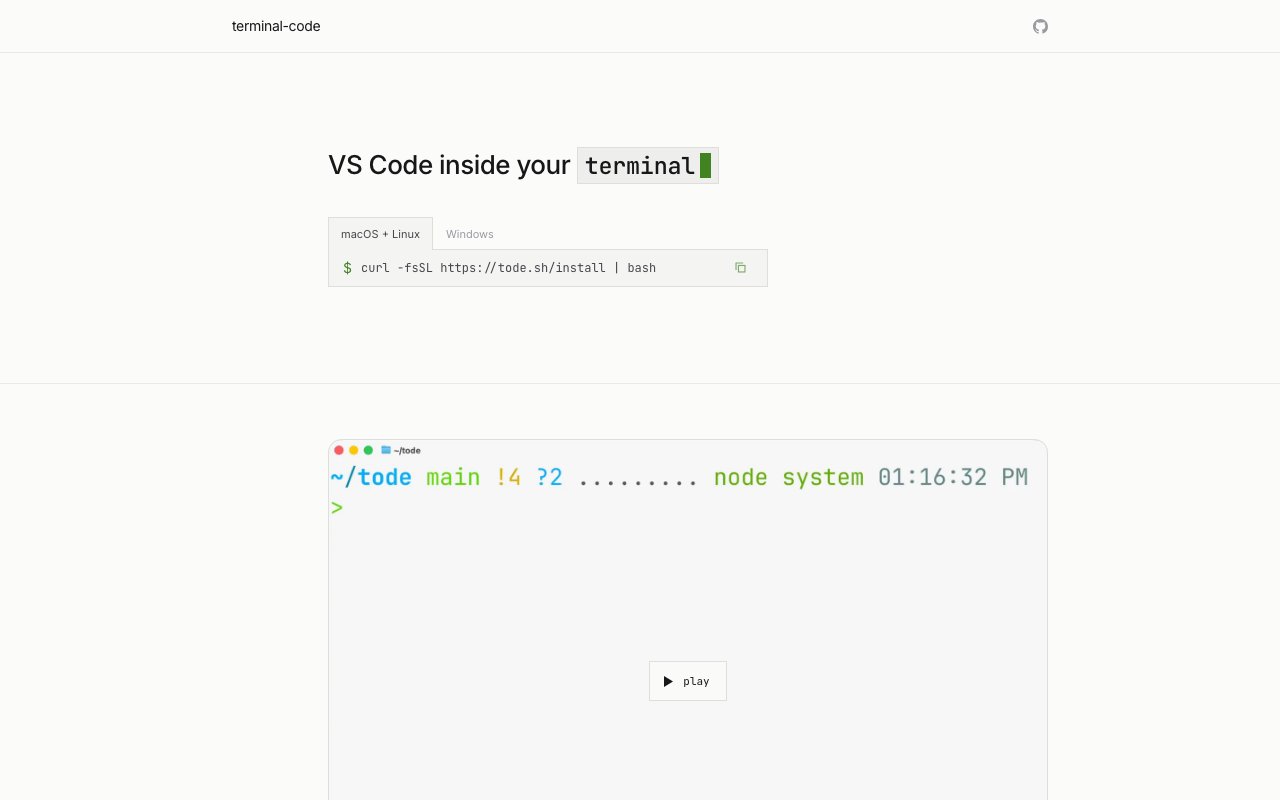
Terminal Code brings VS Code into your terminal by combining two open source projects. Code-server runs VS Code in a browser, and terminal-browser renders a browser in the terminal. The result is a full VS Code environment that runs without leaving the command line. You get syntax highlighting, file navigation, extensions, git integration, and the familiar editing experience, all rendered as text in your terminal window. The command line tool is called tode, and it installs with a single curl command that pulls a self-contained binary.
The use case is for developers who work primarily in terminals and don't want to context-switch to a graphical application. SSH into a remote server, run tode, and you have your editor right there in the same session. There's no separate browser window to manage, no GUI dependencies to install, and no need to forward ports for a web-based code-server setup. It's particularly useful on headless servers, minimal Linux environments, containerized development workflows, or anywhere a full desktop isn't available. If you've ever set up code-server and forwarded ports just to edit files on a remote machine, this is a faster path to the same result without the networking complexity.
Installation is a single curl command that pulls the binary and sets it up. Running curl -fsSL https://tode.sh/install | bash downloads and installs everything you need. From there, tode opens the current directory, or you can pass a file path to jump straight to a specific location. The tool supports navigating to specific line and column positions using the goto flag, comparing files side by side with diff, opening the source control panel directly for reviewing changes, and splitting terminal panes for multi-file editing. These are the commands you'd use repeatedly during a coding session, and they're exposed as straightforward flags rather than buried in menus. The SSH flag lets you connect to remote servers directly, opening the remote filesystem in the editor without additional setup.
Settings import from VS Code, Cursor, and other compatible editors, so your keybindings, themes, and preferences carry over without manual configuration. If you've customized your VS Code setup over months or years, you don't have to redo that work or remember which settings matter to you. The migration handles keyboard shortcuts too, and there's a conflict resolution system for cases where terminal shortcuts overlap with editor shortcuts. This attention to settings portability makes it viable as a daily driver rather than an emergency tool for when you can't access your normal editor. People who switch between local and remote development regularly can maintain the same workflow regardless of where the code lives.
Because it runs VS Code under the hood, you get the same extension ecosystem without compromise. Language servers for TypeScript, Python, Go, Rust, and everything else work the same way they do in the desktop app. Linters, formatters, and themes all function as expected. The terminal rendering layer handles the display, but the editor itself is the real thing running in the background. This matters because it means you're not learning a new tool or giving up features for the sake of running in a terminal. If an extension works in VS Code, it should work here. Copilot, Prettier, ESLint, GitLens, and other popular extensions carry over from your existing setup.
Terminal Code is open source and maintained by Zenbu Labs. The source code is on GitHub at zenbu-labs/terminal-code, and the maintainer is reachable at rob@zenbu.dev for bug reports or feature requests. It runs on macOS, Linux, and Windows, though the terminal rendering layer works best in terminals with good escape sequence support. Modern terminal emulators like iTerm2, Alacritty, Kitty, and Windows Terminal handle the rendering well. Older terminals or basic SSH clients might have display issues. The project updates itself automatically, so you don't need to manually fetch new versions. Development is active, with regular releases addressing bugs and adding features based on community feedback.
The target user is someone comfortable in the terminal who wants the power of VS Code without leaving that environment. It's not a replacement for the desktop app when you have a full GUI available. It's for the moments when you're already in a terminal session and want to edit code without opening another application. Server administrators, DevOps engineers, and developers who spend significant time in SSH sessions will find it most useful. The ability to run tode anywhere you can run a shell, without port forwarding or additional infrastructure, removes friction from remote development.
The tradeoff is that you're rendering a graphical interface as text, which has inherent limitations. Some VS Code features that rely on pixel-precise rendering or mouse interactions won't work as smoothly. Hovering over code for tooltips, dragging to select large blocks, or using features that depend on precise pixel positioning will feel different. Performance depends on your terminal emulator and connection latency if you're running remotely, so a slow SSH connection means a slow editing experience. But for the core workflow of navigating files, editing code, running commands, and committing changes, it delivers what it promises. VS Code without leaving the terminal, with all the extensions and settings you're used to, available anywhere you can open a shell.
Key Features
- Full VS Code in the terminal
- Extension and theme support
- Settings import from VS Code and Cursor
- Navigate to file, line, and column
- File comparison functionality
- Self-updating binary
Pros & Cons
What we like
- No GUI or browser window required
- Works over SSH on remote servers
- Full VS Code extension ecosystem
- Settings carry over from existing editors
Room for improvement
- Terminal rendering limits some visual features
- Performance depends on terminal emulator quality
- Mouse interactions less precise than native VS Code
- Newer project with smaller community
Frequently Asked Questions
What is Terminal Code?
How is this different from Vim or Nano?
Is Terminal Code free?
Does it work over SSH?
Best For
Featured in
Alternatives to Terminal Code

Kevin Gabeci
Solo developer building web apps, cozy browser games, and AI creator toolkits.

SoloDevStack
A solo developer blog built on head-to-head tool comparisons, 580+ posts deep.

Codedex
A gamified, story-driven platform that teaches Python, web dev, and more like an RPG quest
Vibe Built
Building real apps with agentic AI. What worked, what broke, what shipped.
Reviews (0)
Badge builder
Add Terminal Code to your website
Choose a badge style and size, preview it here, then copy the generated HTML. Badge images are self-contained SVGs and do not require an external script.

<a href="https://toolindex.net/tools/terminal-code?ref=badge" target="_blank" rel="noopener">
  <img src="https://toolindex.net/badge/terminal-code/medium.svg" alt="Terminal Code - Listed on Tool Index" width="180" height="50" />
</a>How to use the badge
- 1. Pick the style, size, and theme that fit your layout.
- 2. Copy the generated HTML from the code block.
- 3. Paste it into your footer, homepage, or press page.
Standard badge available
The standard listing badge is available now. Score and circle badges are limited to tools currently ranked in the top 10 of a category.
Badge clicks return visitors to this profile with a referral tag so the source remains identifiable.
Related Tools
Kevin Gabeci
Solo developer building web apps, cozy browser games, and AI creator toolkits.

Coolify
Self-hostable, open source alternative to Heroku and Netlify

Warp
The modern terminal reimagined with AI and collaboration

Bolt.new
Prompt-to-deployed full-stack app inside the browser
Work on Terminal Code? Request listing access or correction