
Chaser
macOS screenshot tool that captures both visual and semantic UI context in one shortcut
Gallery
About Chaser
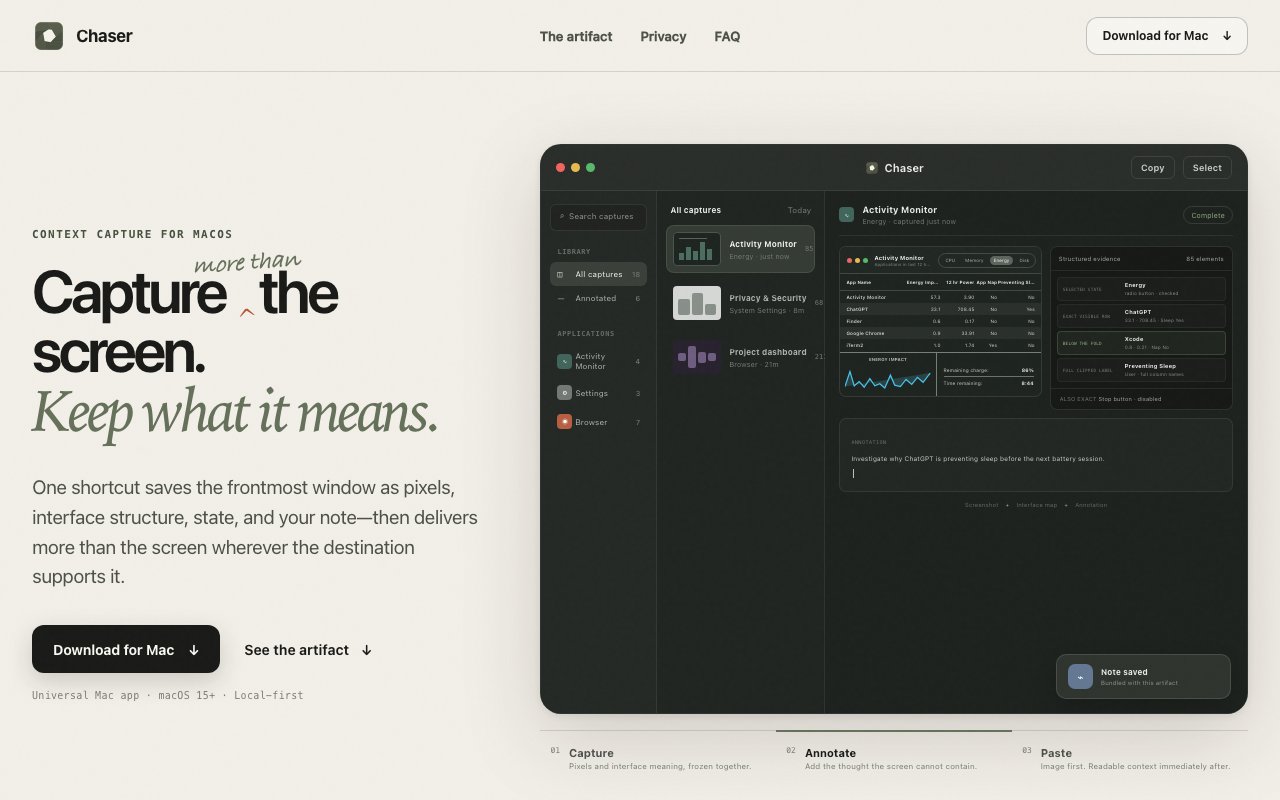
Chaser is a macOS screenshot utility that captures more than pixels. When you take a standard screenshot, you get a flat image and lose all the underlying interface structure that made that screen meaningful. Chaser grabs both the visual and the semantic layer in a single shortcut. The result is a capture that preserves what the screen looked like alongside what the interface actually contained at that moment, including full labels for truncated text, button states, selections, off screen content, and every interactive element the accessibility API can see. The example on the site shows a capture of Activity Monitor with 85 distinct interface elements extracted from a single window, each labeled and structured so a recipient could understand exactly what was happening in that application at that moment without needing additional explanation.
The problem it addresses is familiar to anyone who has tried to document a bug or walk through an interface state with a colleague. A PNG shows you pixels, but it doesn't tell you what text was selected, what the expanded value of a truncated label was, or which row in a table was highlighted. If you've ever pasted a screenshot into a Slack thread and then spent the next five messages explaining what it means, you know the gap. The same thing happens in bug reports, design reviews, and support tickets. Someone asks for clarification, you try to describe what you were looking at, and the conversation stretches on longer than the actual issue warranted. Chaser packages that contextual data alongside the visual so the recipient gets both in one artifact. You stop explaining and start showing.
Everything runs locally using native Swift code. There's no OCR involved, no AI processing, and no uploads to any server. The tool reads directly from the macOS Accessibility API to pull deterministic interface observations rather than guessing at what the screen contains. This means the data is accurate and repeatable. The same window captured twice will produce the same structure, which matters if you're debugging or comparing states across sessions. Your captures stay on your Mac in a searchable library organized by application and date. You can filter by which app was captured, add annotations to remind yourself why you saved something, and find old captures quickly when you need them weeks later. The library grows as you use Chaser, building a record of interface states over time.
The workflow centers on a global keyboard shortcut that triggers from the menu bar. One press captures the frontmost window as both an image and a structured context snapshot. There's no dialog, no selection rectangle, and no extra clicks. When you paste into a rich editor, Chaser delivers the image first, then the normalized interface context immediately after, so recipients can see the visual and reference the metadata without switching between files. The two part paste format is automatic, requiring no extra steps once you've captured. If you're pasting into a plain text field, you get just the image as you'd expect. The shortcut fits into existing screenshot habits rather than requiring you to learn a new interface.
System requirements include macOS 15 or later, with support for both Apple Silicon and Intel Macs as a universal app. Two permissions are required during setup. Screen Recording allows Chaser to capture the window pixels. Accessibility allows it to read the interface structure and enables the smart paste behavior. Granting Accessibility access can feel invasive if you don't understand why an app needs it, so the site explains the purpose clearly during onboarding. The permission is used only for reading interface metadata, not for controlling your computer or logging keystrokes. Once granted, the permissions don't need to be revisited unless you reinstall the app.
Privacy is straightforward. Captures, history, search, and annotations all stay on device. The app makes no external requests. Before you share any artifact, you can inspect exactly what data it contains, so nothing leaves your machine without your explicit action. If you're working on a project with sensitive information, that local only design means you don't have to worry about captures landing on someone else's server. There's no account, no cloud sync, and no telemetry to think about.
Chaser appears to be free, with a download link and no visible pricing page or purchase flow. It's a younger product with limited documentation, so edge cases may require experimentation. If you run into something unexpected, you're on your own until the community or documentation grows. For developers, designers, QA engineers, and support teams who spend their days documenting interface behavior in detail, having a capture tool that preserves semantic context alongside the visual is a meaningful improvement over plain screenshots and the explanatory paragraphs that usually follow them.
Key Features
- Complementary capture of image and UI context
- Local artifact library with search by app or title
- Annotation support for personal notes
- Smart paste with image first then context
- Menu bar utility with global shortcuts
- Universal Mac app for Apple Silicon and Intel
Pros & Cons
What we like
- Captures semantic interface data that screenshots normally lose
- Runs entirely locally with no cloud uploads or LLM calls
- Single shortcut workflow fits existing screenshot habits
- Searchable library makes past captures easy to find
Room for improvement
- Requires macOS 15 or later, excluding older systems
- Needs both Screen Recording and Accessibility permissions
- Young product with limited documentation
- Only useful if you actually need the semantic context
Frequently Asked Questions
What is Chaser?
Is Chaser free?
Does Chaser upload my screenshots?
Who is Chaser for?
Best For
Featured in
Alternatives to Chaser
View all
CalendHub
Smart scheduling and calendar management for teams
Kevin Gabeci Toolkits
Seven AI toolkits for writing books, making music, cutting video, and building agents.

Eased Into AI
Learn AI from zero. No jargon, no hype, just steps that work.

Fix It Gently
Calm, plain-English fixes for everyday tech problems.
Reviews (0)
Badge builder
Add Chaser to your website
Choose a badge style and size, preview it here, then copy the generated HTML. Badge images are self-contained SVGs and do not require an external script.

<a href="https://toolindex.net/tools/chaser?ref=badge" target="_blank" rel="noopener">
  <img src="https://toolindex.net/badge/chaser/medium.svg" alt="Chaser - Listed on Tool Index" width="180" height="50" />
</a>How to use the badge
- 1. Pick the style, size, and theme that fit your layout.
- 2. Copy the generated HTML from the code block.
- 3. Paste it into your footer, homepage, or press page.
Standard badge available
The standard listing badge is available now. Score and circle badges are limited to tools currently ranked in the top 10 of a category.
Badge clicks return visitors to this profile with a referral tag so the source remains identifiable.
Related Tools

Confluence
Atlassian's long-running team wiki that anchors many enterprise knowledge stacks
Asana
Project management for teams that live in projects, tasks and dependencies
Kevin Gabeci Toolkits
Seven AI toolkits for writing books, making music, cutting video, and building agents.

Logseq
An open-source outliner notes app where every bullet is a first-class block
Work on Chaser? Request listing access or correction