
Draw.How
Interactive drawing lessons with an in-browser canvas for learning to draw from scratch
Gallery
About Draw.How
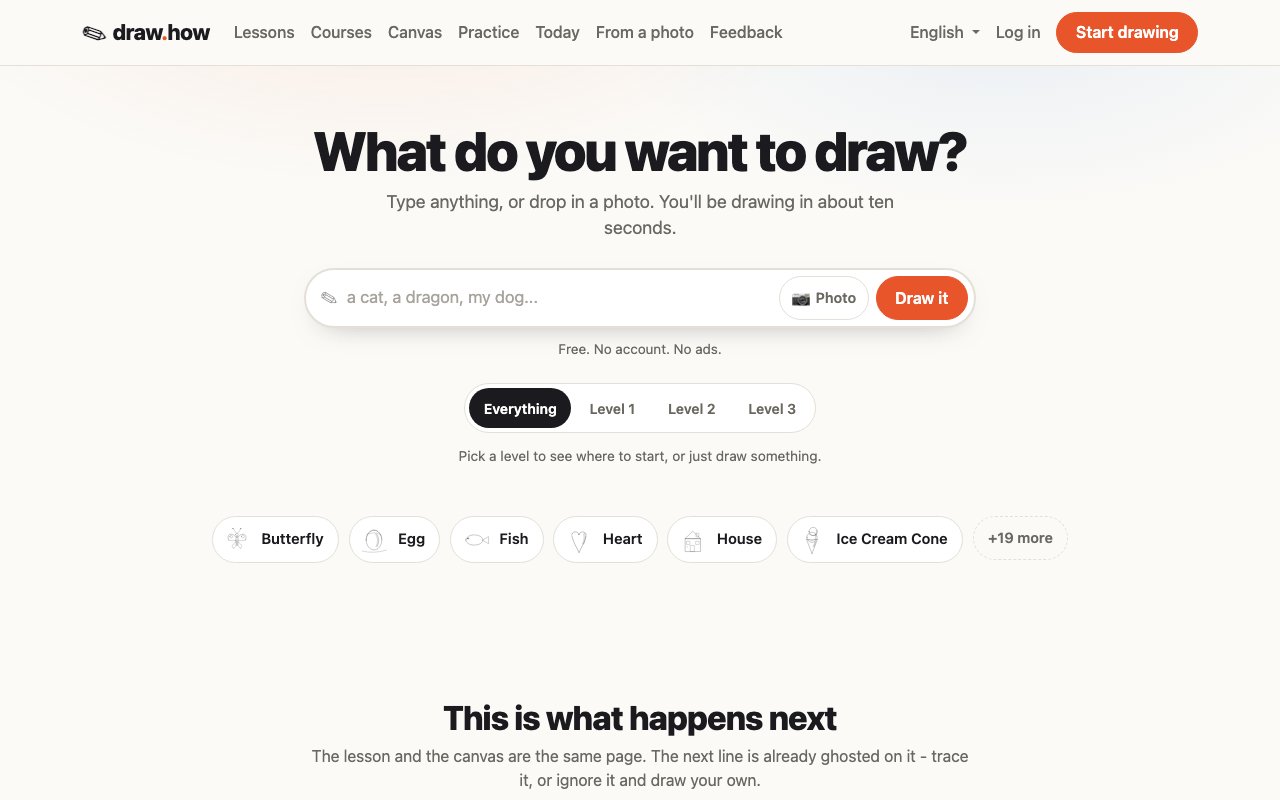
Draw.How is a browser-based platform that teaches drawing through structured lessons paired with a built-in canvas where you practice immediately. Instead of watching a video and then switching to paper, you follow along on the same page, drawing directly in the interface while ghosted reference lines guide your hand. The system is built for absolute beginners who have not drawn since school and want a path from stick figures to competent sketches. The curriculum spans 107 lessons across six categories covering animals, food, objects, faces, nature, and people, with each lesson averaging fourteen steps and taking about thirteen minutes to complete. The range runs from six to twenty-five minutes depending on complexity, so you can fit a complete lesson into a coffee break or stack several for a longer session.
The approach breaks drawing into learnable skills rather than treating it as innate talent. Level one is designed for people who have never really drawn or have not since childhood. It starts with foundational shapes users can already make and teaches core habits like blocking in the big shape, putting a center line through it, and hanging features off that structure. The recommended entry path includes fish, cat, and heart lessons that establish these principles before moving to more complex subjects. Level two addresses drawings that come out flat by developing dimensional understanding through proportion and perspective work. Level three targets learners whose outlines are solid but who want things to look like they occupy space, focusing on light, shadow, and tonal values that add depth and solidity.
Each lesson step includes four components that distinguish it from typical follow-along tutorials. There are instructions telling you what to do, reasoning explaining why, common mistakes showing what to avoid, and measurable checkpoints so you know whether you succeeded. This differs from ten-picture tutorials where you just compare your result to a finished drawing and hope it looks close enough. The checkpoints give you objective criteria rather than subjective judgment, which matters when you are learning and cannot yet trust your own eye. The site explicitly states that most people can see a difference in their own drawings within a couple of weeks, and it emphasizes that ten minutes a day beats an afternoon on the weekend because motor skills consolidate between sessions rather than during them.
Beyond the structured curriculum, Draw.How includes five technique drills targeting specific foundational skills: line control for smooth committed strokes, ellipses for circular forms used in cups and wheels and faces, shapes and boxes as the foundation for man-made objects, proportion for judging relative sizes, and values and shading for creating depth through contrast. Five additional pose practice modes apply these skills to living subjects with timed exercises ranging from thirty-second gestures to five-minute figures, plus dedicated modes for hands, faces, and animals. The platform measures five dimensions in your drawings and automatically recommends which drill addresses your weakest area, so you are not guessing about what to work on next. Session recommendations are sixty seconds for a warmup, five minutes for optimal daily practice, and ten minutes maximum per drill since extended grinding yields diminishing returns.
The photo-to-tutorial feature lets you upload any photograph, and the system breaks it into shapes of light and dark, generating step-by-step guidance you can follow to draw that specific image. It works best with photos that have a clear subject and decent lighting, and the output is not cartoon line art but a realistic breakdown of tonal shapes. This works whether you are drawing on screen or on paper with a pencil, since the lessons display on one side while you work on the other. The platform does not require a graphics tablet; it supports mouse, trackpad, finger on a touchscreen, or traditional pencil and paper where you use the displayed steps as a reference. The interface is available in over seventy languages including Spanish, French, German, Japanese, Korean, Arabic, Hindi, and dozens more, making it accessible to a global audience without translation friction.
The design philosophy emphasizes user ownership and privacy. The about page states explicitly that they never generate art for you and never train on your drawings. Your work is yours. Difficulty adapts to actual performance rather than assuming anything based on age. One targeted fix per lesson keeps feedback focused. Sixty seconds counts as a complete practice day. The classroom-friendly design requires no login and collects no student data, making it usable in schools without administrative hurdles.
Access is genuinely free with no account required and no advertisements. The site states this clearly, which is unusual for a learning platform offering over a hundred lessons. Accounts exist only to sync drawings and progress across devices, and any work you do before signing up migrates when you create an account. The navigation includes subscription and refund pages suggesting some premium component exists or existed, but the core courses are fully accessible without payment. For anyone who believes they cannot draw but wants to learn, this is a low-friction starting point that teaches the underlying skills rather than just showing finished examples and hoping you figure out how to replicate them.
Key Features
- In-browser canvas with guided lessons
- Three progressive skill-level courses
- Photo-to-tutorial conversion
- Ghosted reference lines for tracing
- Practice drills for specific skills
- Available in over ninety languages
Pros & Cons
What we like
- Learn and practice in the same interface
- Genuinely free with no ads or account required
- Works with mouse, trackpad, finger, or paper
- Progressive curriculum from zero to shading
Room for improvement
- No advanced courses beyond light and shadow
- Feedback system details are unclear
- Limited to foundational drawing skills
- No community or peer interaction visible
Frequently Asked Questions
What is Draw.How?
Is Draw.How free?
Do I need a drawing tablet?
Who is Draw.How for?
Best For
Featured in
Alternatives to Draw.How

Framer
Visual website builder that lets designers ship production-grade marketing sites with real CMS, SEO controls, and code components.

Tailwind CSS
Rapidly build custom designs without leaving your HTML

Apatero Studio
Creator studio for AI image, video, audio, 3D, and avatars. Every model worth using, in one workspace.

Pixel Painters
Unlimited graphic design subscriptions built only for churches and ministries
Reviews (0)
Badge builder
Add Draw.How to your website
Choose a badge style and size, preview it here, then copy the generated HTML. Badge images are self-contained SVGs and do not require an external script.

<a href="https://toolindex.net/tools/draw-how?ref=badge" target="_blank" rel="noopener">
  <img src="https://toolindex.net/badge/draw-how/medium.svg" alt="Draw.How - Listed on Tool Index" width="180" height="50" />
</a>How to use the badge
- 1. Pick the style, size, and theme that fit your layout.
- 2. Copy the generated HTML from the code block.
- 3. Paste it into your footer, homepage, or press page.
Standard badge available
The standard listing badge is available now. Score and circle badges are limited to tools currently ranked in the top 10 of a category.
Badge clicks return visitors to this profile with a referral tag so the source remains identifiable.
Related Tools
Apatero Studio
Creator studio for AI image, video, audio, 3D, and avatars. Every model worth using, in one workspace.
Tailwind CSS
Rapidly build custom designs without leaving your HTML

Figma
Collaborative interface design tool

Marvel
Lightweight prototyping platform for turning images and screens into clickable mobile and web prototypes.
Work on Draw.How? Request listing access or correction