
Squint
Draw around anything on your screen and get an AI explanation beside it
Gallery
About Squint
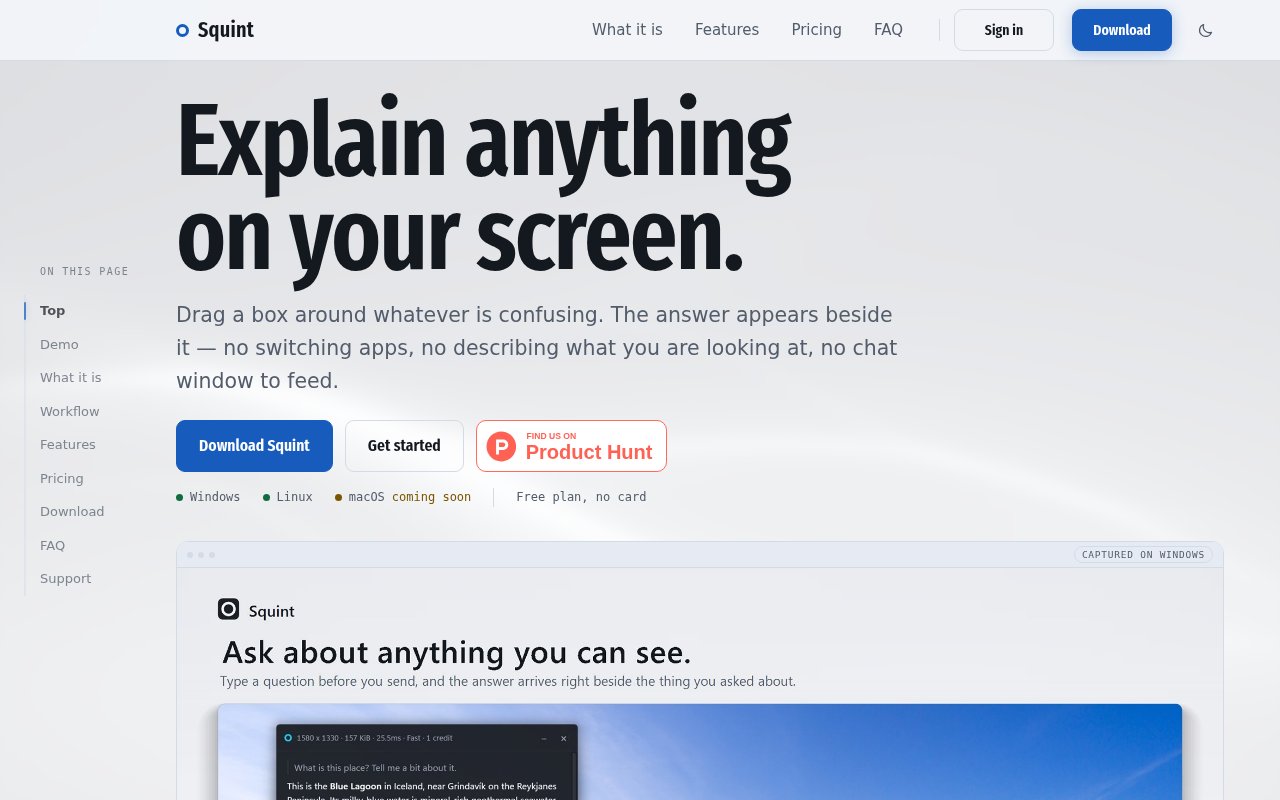
Squint is a desktop app for asking AI about whatever is already on the screen. Instead of taking a screenshot, opening a separate chat, uploading the file, and explaining which part matters, the user presses a hotkey and draws a box around the confusing region. An answer then streams into a panel beside the selection. The prompt is optional because the selected visual context can be the question on its own. That makes Squint useful for the small moments when someone wants to identify an image, understand an error, read unfamiliar notation, compare options, or get context without leaving the work in front of them.
The interaction is intentionally compact. Squint waits in the system tray until it is called with the hotkey or its capture shortcut. The user selects one region, or holds Shift to add as many as four regions, then can type a specific request if the image alone isn't enough. Responses support Markdown, mathematical expressions, and code blocks, and the answer panel changes size to fit the response. Follow-up questions stay in that panel, so a user can clarify an answer without taking the same screenshot again or explaining the original context from scratch. The app offers a Fast model for ordinary captures and a Best model for harder material such as dense fine print.
It fits people whose work repeatedly crosses from visible material into explanation. A developer can select an error dialog or a section of code. A student can mark a diagram or formula. A shopper can select several on-screen options and ask for help comparing them. Someone working through an unfamiliar interface can point at the exact control they don't understand. Squint isn't positioned as a general chat destination. Every conversation begins with a capture, and each one has a fixed follow-up allowance. That narrow starting point helps it stay focused on interpreting the thing the user is looking at rather than becoming another tab full of unrelated chats.
The main difference is how little context switching it asks for. The capture, selection, crop, and interface behavior happen locally, while the selected region is sent to OpenAI's API for the answer. Squint says it does not continuously watch, poll, or record the screen. It captures only when the user activates it, and the rest of the display does not leave the machine. According to its privacy explanation, the selected region is gone from Squint's side once the answer returns. The app needs a network connection because model responses are remote, so it isn't an offline visual reference tool. Closed chats can be stored locally, searched, reopened for continuation, or disabled in settings.
Chat history is designed around the same capture-first model. A closed conversation remains on the computer, can be found through search, and can be continued later if history is enabled. Reopening it does not reset the allowed number of follow-ups, which keeps the plan limits predictable. The response itself can render structured material rather than flattening everything into plain text. Code remains in code blocks, equations can use mathematical notation, and Markdown preserves useful hierarchy. Sixteen visual themes include options such as Dracula, Nord, Gruvbox, and Catppuccin, with the theme accent also applied to the selection border.
There are several thoughtful desktop details beyond the basic capture loop. Users can rebind the default Win+Shift+Q shortcut, choose among sixteen themes, and configure response streaming speed. Squint supports multiple monitors, high resolution displays, portrait displays, and different scaling settings. An account can be signed in on up to three devices. Windows 10 and 11 are supported, and a Linux AppImage is offered for Wayland on recent GNOME or KDE Plasma environments. macOS is listed as coming soon, so Mac users can't use the app yet. The login flow uses an emailed sign-in link or Google rather than a password.
Squint has a genuine free plan with no card requirement. It allows three captures per day and ten per week, uses the Fast model, and permits up to two follow-up questions per capture. The free tier still includes the archive, multiple-region selection, and all themes. Plus costs $10 per month, with a lower effective price on yearly billing, and includes 2,500 monthly credits, both models, and up to ten follow-ups per capture. A Fast capture or follow-up costs one credit, while a Best one costs twenty-five, and unused credits don't roll over. Failed or blank captures aren't charged. The free allowance is enough to test whether the workflow fits, while frequent use and access to the more capable model require Plus.
Key Features
- Hotkey screen region capture
- Optional capture prompts
- In-panel follow-up questions
- Multiple region selection
- Locally searchable chat history
- Fast and Best models
Pros & Cons
What we like
- Keeps visual questions beside the original work
- Free plan includes every interface feature
- Captures only after explicit activation
- Handles multiple displays and screen scaling
Room for improvement
- macOS support is still coming soon
- Answers require an internet connection
- Selected regions are sent to OpenAI
- Free use is capped daily and weekly
Frequently Asked Questions
What is Squint?
Is Squint free?
Does Squint record the screen continuously?
Which operating systems does Squint support?
Best For
Featured in
Alternatives to Squint

Apatero AI
The creator studio for AI image, video, audio, 3D, and avatars, now at apatero.ai.

SoloDevStack
A solo developer blog built on head-to-head tool comparisons, 580+ posts deep.
Apatero Studio
Creator studio for AI image, video, audio, 3D, and avatars. Every model worth using, in one workspace.

Melodex
Turn your idea into an AI-generated music video
Our take
Tool Index Editorial · Oct 2026· 3.5/5
Squint lets Windows and Linux users draw around part of the screen and receive an AI explanation beside it. We found the capture first interaction genuinely quicker than saving a screenshot, opening a chat, uploading it, and rebuilding context. Multiple regions, follow up questions, rich formatting, and local searchable history make it useful for errors, diagrams, formulas, and visual comparisons.
There is a real free plan with no card, though usage is capped daily and weekly. The selected region is sent to OpenAI, so this isn't suitable for confidential screens without careful policy review, and it can't work offline. macOS support is still listed as coming soon. The product does one interaction well, but model quality and privacy constraints remain outside its control.
Editorial opinion from the Tool Index team, written from the public product pages. Not a user review.
Reviews (0)
Badge builder
Add Squint to your website
Choose a badge style and size, preview it here, then copy the generated HTML. Badge images are self-contained SVGs and do not require an external script.

<a href="https://toolindex.net/tools/squint?ref=badge" target="_blank" rel="noopener">
  <img src="https://toolindex.net/badge/squint/medium.svg" alt="Squint - Listed on Tool Index" width="180" height="50" />
</a>How to use the badge
- 1. Pick the style, size, and theme that fit your layout.
- 2. Copy the generated HTML from the code block.
- 3. Paste it into your footer, homepage, or press page.
Standard badge available
The standard listing badge is available now. Score and circle badges are limited to tools currently ranked in the top 10 of a category.
Badge clicks return visitors to this profile with a referral tag so the source remains identifiable.
Related Tools
Apatero AI
The creator studio for AI image, video, audio, 3D, and avatars, now at apatero.ai.
Kevin Gabeci Toolkits
Seven AI toolkits for writing books, making music, cutting video, and building agents.

Warp
The modern terminal reimagined with AI and collaboration

Bolt.new
Prompt-to-deployed full-stack app inside the browser
Work on Squint? Request listing access or correction