
Seek
Ctrl+F for video transcripts on YouTube, Vimeo, Udemy, and more
Gallery
About Seek
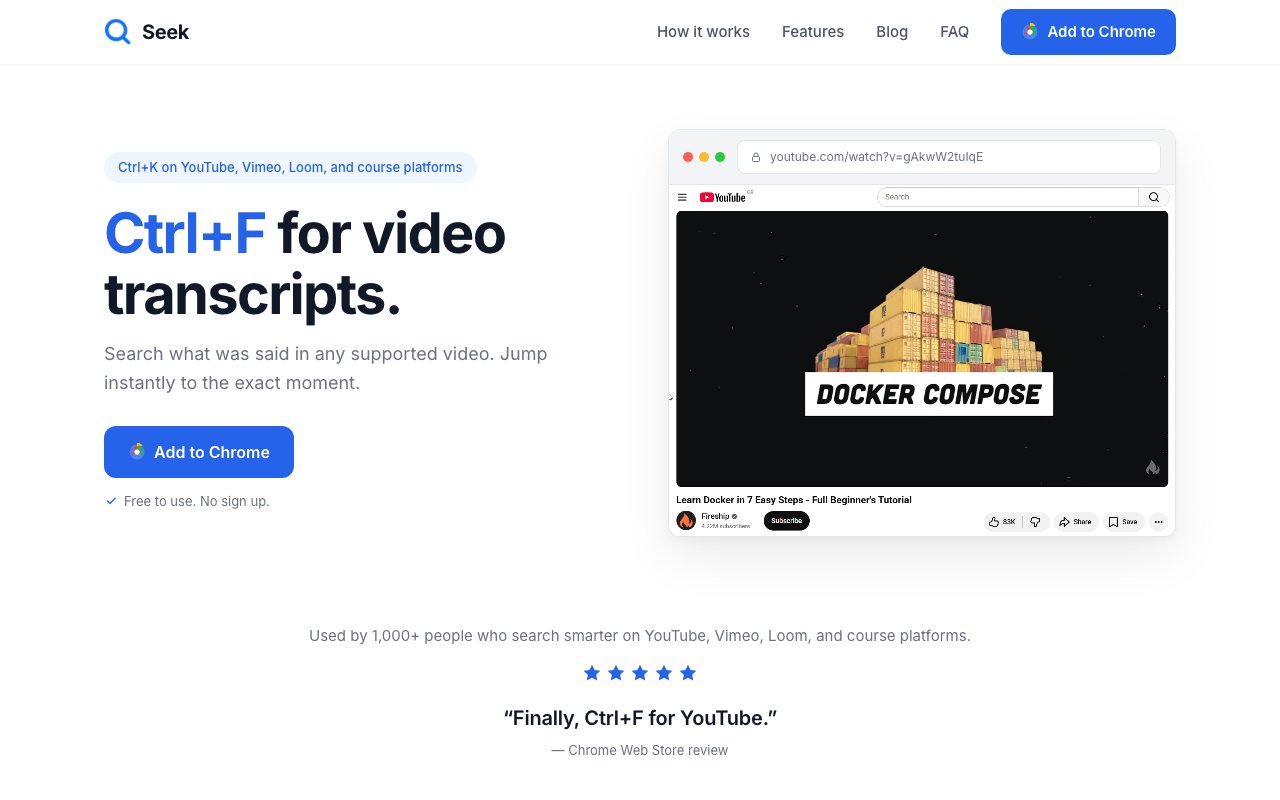
Seek is a browser-based tool that adds search functionality to video transcripts across multiple platforms. It works with YouTube, Vimeo, Loom, Udemy, Coursera, and Pluralsight, giving you the ability to find specific words or phrases within video content and jump directly to that moment. The concept is essentially bringing the familiar Ctrl+F text search experience to video, where normally you'd have to scrub through a timeline, watch at 2x speed, or skim chapter markers hoping to find the section you need. Seek makes video content navigable like text, which is how it should work when you're looking for specific information.
The tool operates through a keyboard shortcut. Press Ctrl+K and a search interface appears, letting you type any word or phrase. Seek then locates matches within the video's transcript and shows you where those moments occur. Click a result and you jump straight to that timestamp. This transforms how people interact with educational content, recorded meetings, tutorials, and any video where you need to find specific information without watching the entire thing. The keyboard-driven workflow keeps your hands on the keyboard rather than forcing you to grab a mouse and scrub through a timeline hoping you land near the right spot.
Seek targets anyone who regularly works with video content and needs to locate specific information efficiently. Students taking online courses can find the exact lecture segment where a concept was explained without rewatching entire videos or skipping around blindly. Professionals reviewing recorded meetings can jump to when a particular topic was discussed rather than sitting through an hour of footage to find ten minutes of relevant content. Researchers going through video interviews can search for keywords across their material instead of manually scrubbing through hours of footage. Content creators can navigate their own recordings to find specific clips for editing or reference without relying on memory of where things happened.
The problem Seek solves becomes more painful as video content proliferates. Online courses, webinars, video documentation, recorded meetings, and tutorial libraries are everywhere. Most people's learning and work materials increasingly come in video form rather than text. But most platforms treat video as a linear medium even when users need random access to specific moments. Transcripts exist on many platforms, but actually searching through them and jumping to timestamps usually requires clunky workarounds or external tools that break the flow. Seek provides the direct search-to-timestamp functionality that should have been built into video platforms from the start but somehow never was.
The multi-platform support is notable because it means one tool works across the different places where video content lives. You don't need separate solutions for educational platforms versus work tools versus social video. YouTube covers general content and tutorials. Vimeo handles professional and creative video hosting. Loom is standard for async work communication and team updates. Udemy and Coursera cover online education and professional development courses. Pluralsight targets technical and developer training. These six platforms represent the major places where long-form video with searchable transcripts actually exists, focusing on use cases where transcript search provides genuine utility rather than trying to support every video site regardless of whether the feature makes sense there.
The workflow Seek enables changes how you can approach video-based learning and research. Instead of watching entire videos hoping relevant information appears, you can query your video library the same way you'd search your notes or documents. If you remember that a concept was explained in one of your course videos but can't recall which one or when, you can search across transcripts rather than replaying content you've already seen. This turns video from a passive, time-bound medium into something you can actively navigate based on what you need in the moment. The time savings compound quickly when you're working with large amounts of video content regularly.
For anyone who has tried to find a specific moment in a long video, the frustration is familiar. You know the information is there somewhere, but finding it means either watching the whole thing again or making educated guesses about where to skip. Seek eliminates that guesswork entirely. Type what you're looking for and the tool shows you exactly where it appears. This is especially valuable for reference material you've watched before but need to revisit, or for navigating content you haven't seen yet when you only need specific sections rather than the full video.
Seek presents itself simply and directly, positioning around the core functionality without lengthy feature lists or marketing language. The product page emphasizes the keyboard-driven workflow and the specific platforms supported. For users who already know they need this capability, the straightforward presentation makes it easy to understand what Seek does and decide whether it fits their workflow. The tagline of Ctrl+F for video transcripts captures the entire value proposition in one phrase, which is how it should be for a tool that solves a focused problem well.
Key Features
- Instant transcript search via Ctrl+K
- Jump to exact video timestamps
- Works on YouTube, Vimeo, and Loom
- Supports Udemy, Coursera, Pluralsight
- Optional AI chat with your own key
- Privacy-focused with no data collection
Pros & Cons
What we like
- Free extension with no account required
- Keyboard shortcut matches familiar search behavior
- Supports multiple video platforms out of the box
- Makes long-form educational content actually searchable
Room for improvement
- Chrome extension only, no Firefox or Safari
- Depends on platforms having transcript data available
- AI features require bringing your own API key
- Newer extension with smaller user base
Frequently Asked Questions
What is Seek?
Is Seek free?
What video platforms does Seek support?
Does Seek collect my data?
Best For
Featured in
Alternatives to Seek

CalendHub
Smart scheduling and calendar management for teams
Kevin Gabeci Toolkits
Seven AI toolkits for writing books, making music, cutting video, and building agents.

PrimeTask
Offline-first work OS with tasks, CRM, and canvas views you buy once and own forever
Kibu
Vertical software for disability service providers covering compliance, documentation, and programming
Reviews (10)
Powerful once it clicks
Tried Seek on a side project first, then rolled it out everywhere. Got real value out of jump to exact video timestamps. It has shaved real time off my week. Mostly using it for navigating long online course videos efficiently. The catch is depends on platforms having transcript data available. Worth it for what I get out of it.
Worth a look
Seek has quietly become part of my daily flow. The privacy-focused with no data collection is more useful than I expected. It has shaved real time off my week. Found it works best for searching lecture recordings for exam topics. It earns its place in my stack.
Decent with some rough edges
Have been running Seek for a while, here is where I land. Where it really wins is instant transcript search via ctrl+k. It just works, day after day, without surprises. Mostly using it for locating quotes in podcast episodes quickly. It would be a five if not for ai features require bringing your own api key.
Pulled its weight from week one
Hadn't planned on switching, but Seek was hard to ignore. Where it really wins is makes long-form educational content actually searchable. Mostly using it for navigating long online course videos efficiently. It earns its place in my stack.
Powerful once it clicks
Seek has quietly become part of my daily flow. What stands out is how it handles supports udemy, coursera, pluralsight. It slotted into my routine without much fuss. Found it works best for locating quotes in podcast episodes quickly. It would be a five if not for newer extension with smaller user base.
Two months in, no regrets
Hadn't planned on switching, but Seek was hard to ignore. It has shaved real time off my week. It earns its place in my stack.
Quietly excellent
Have been running Seek for a while, here is where I land. Got real value out of optional ai chat with your own key. The defaults are sensible, so I was not fighting settings on day one. Recommending it to people in a similar spot.
Finally something that fits
Have been running Seek for a while, here is where I land. What stands out is how little babysitting it needs. Mostly using it for locating quotes in podcast episodes quickly. Glad I made the switch.
It just works
Hadn't planned on switching, but Seek was hard to ignore. The thing I keep coming back to is how reliable it is. It does what it says, which is rarer than it should be. Mostly using it for navigating long online course videos efficiently. No regrets so far.
Pulled its weight from week one
Picked Seek for the price, stayed for the quality. Got real value out of optional ai chat with your own key. The interface stays out of my way, which I appreciate. Found it works best for finding specific moments in programming tutorials. No regrets so far.
Badge builder
Add Seek to your website
Choose a badge style and size, preview it here, then copy the generated HTML. Badge images are self-contained SVGs and do not require an external script.

<a href="https://toolindex.net/tools/seek?ref=badge" target="_blank" rel="noopener">
  <img src="https://toolindex.net/badge/seek/medium.svg" alt="Seek - Listed on Tool Index" width="180" height="50" />
</a>How to use the badge
- 1. Pick the style, size, and theme that fit your layout.
- 2. Copy the generated HTML from the code block.
- 3. Paste it into your footer, homepage, or press page.
Standard badge available
The standard listing badge is available now. Score and circle badges are limited to tools currently ranked in the top 10 of a category.
Badge clicks return visitors to this profile with a referral tag so the source remains identifiable.
Related Tools

Confluence
Atlassian's long-running team wiki that anchors many enterprise knowledge stacks
Asana
Project management for teams that live in projects, tasks and dependencies
Kevin Gabeci Toolkits
Seven AI toolkits for writing books, making music, cutting video, and building agents.

Logseq
An open-source outliner notes app where every bullet is a first-class block
Work on Seek? Request listing access or correction