
Photopea
Browser-based image editor that opens Photoshop, Sketch, XD, and PDF files without an install or account.
Gallery
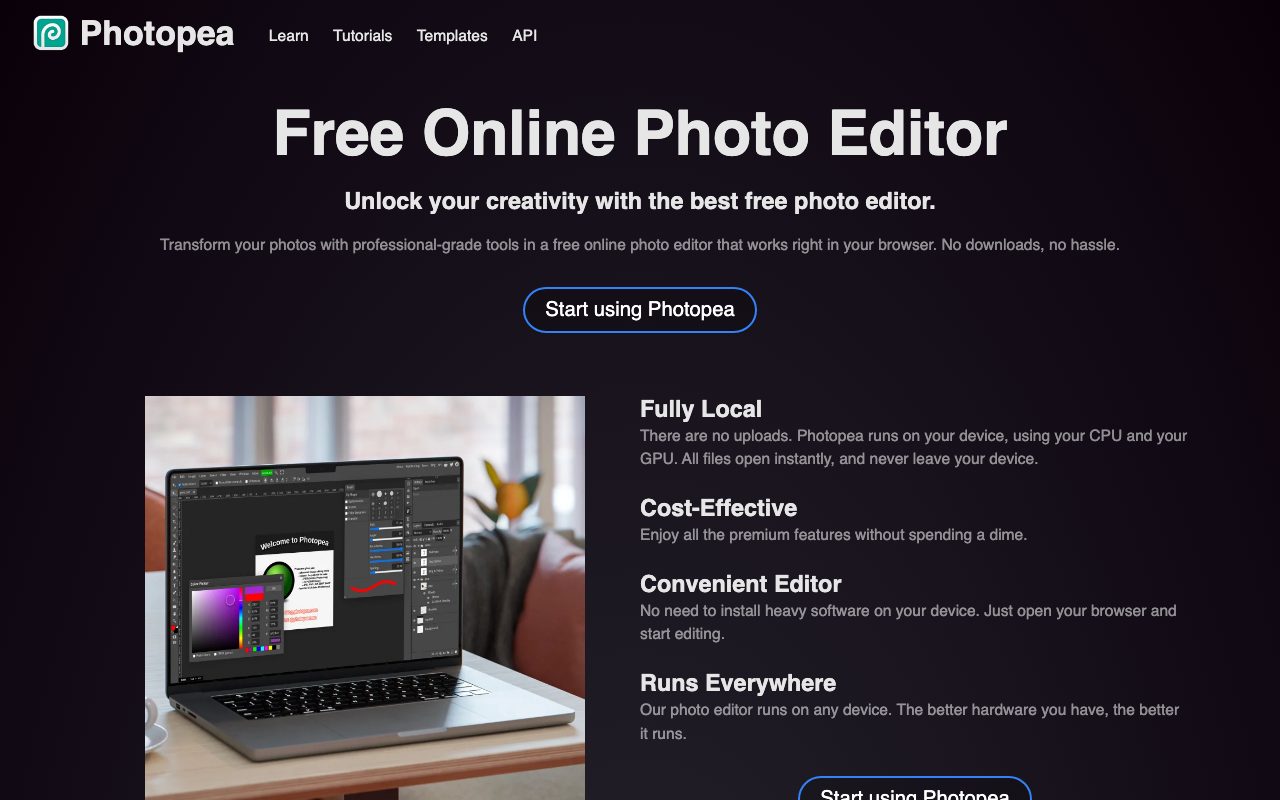
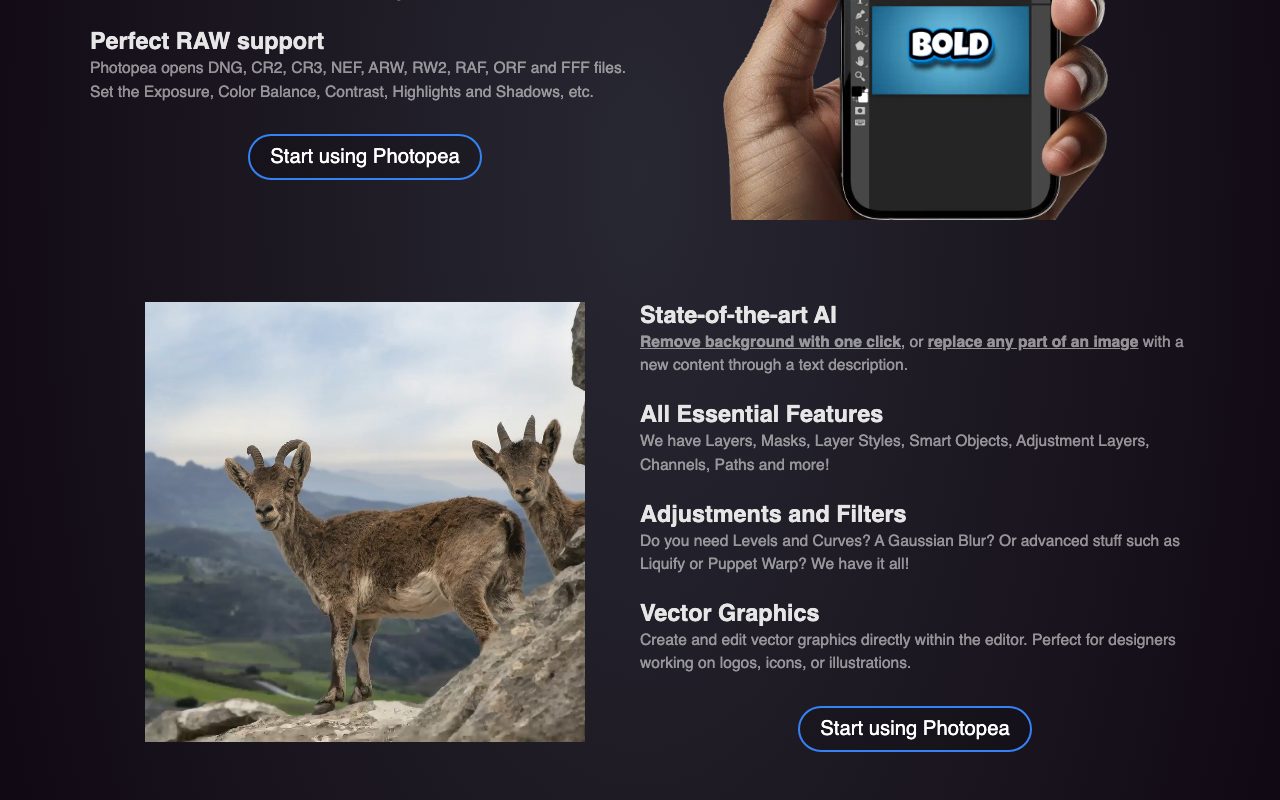
About Photopea
Photopea is a free, browser-based image editor that opens Photoshop files and behaves like Photoshop without the install or subscription. It runs entirely in the browser, opens PSD, AI, Sketch, and XD files, and ships with brushes, layers, masks, smart objects, and most of the muscle you actually use day to day.
The story of Photopea is one developer's solo project that grew into a tool millions of people open every month. There is no venture money, no IPO posturing, no acqui-hire rumor. Just a steady release cadence and a free tier that has not gotten worse.
If you have ever needed to open a PSD on a Chromebook, Photopea is the answer. It is also a credible daily driver for a lot of design work, with caveats.
What Photopea does
Photopea is a raster and vector image editor focused on Photoshop compatibility. Open a PSD with all its layers, masks, smart objects, adjustment layers, and effects, and Photopea preserves the structure. Save back to PSD with most properties intact.
It also opens AI (Illustrator), Sketch, XD, RAW, GIMP XCF, and many other formats. Export to PNG, JPG, WebP, SVG, PDF, and the usual suspects. Files stay local in the browser unless you upload to a cloud, which is a privacy advantage worth noting.
Tooling covers most of the Photoshop kit: brushes, gradient tool, pen, type, smart selection, content-aware fill, healing brush, and adjustment layers. Some advanced features and the deepest filter set are not at parity, and the gap is smaller than skeptics expect.
Who Photopea is for
Anyone who needs to open or edit a PSD without paying Adobe. Students, teachers, occasional designers, freelancers who hand off final work to clients in Photoshop format, and developers who need to extract assets from a designer's PSD.
It is also a credible main editor for hobbyists and small businesses doing modest graphic work. The full Adobe suite is overkill if you edit a few images a month.
Pricing
The free tier is fully functional with ads on the side of the canvas. Premium at five dollars a month removes the ads, adds a few extra features, and supports the project. There is no per-seat ramp; one purchase per user.
That is essentially the pricing model. Photopea has not played the SaaS-tier game, and the result is one of the most honest tools in the design space.
Features that earn it
PSD compatibility is the headline. Layers, masks, smart objects, layer styles, adjustment layers, effects, all of it survives the round trip in most cases. Designers can hand a PSD to a developer who opens it in Photopea without Adobe credentials.
The browser-only model means you can use Photopea on a Chromebook, a locked-down work laptop, or a friend's machine. Files are local; nothing uploads unless you choose to.
The keyboard shortcuts mirror Photoshop's, which makes muscle memory transfer instantly. After ten minutes you stop noticing it is a different app.
Vector tools handle the AI side decently. The pen tool, paths, and shape primitives are good enough for logo work and small vector edits. Heavy Illustrator workflows still want the real thing.
Tradeoffs
Performance has limits. The browser is a smaller box than a native app, and very large files (huge multi-gigabyte PSDs) chug. Most files load fine; some files reveal the architecture cost.
Some advanced Photoshop features have no Photopea equivalent. AI-driven generative fill, the deepest 3D tools, and certain plugins are missing. The plugin ecosystem is far smaller than Photoshop's.
UX polish is about 90% of Photoshop. Most things look familiar; some flows feel a half-step less polished. This is what one developer building most of the app produces, and it is impressive.
Photopea is the rare free tool that does not feel like the budget option. It is the budget option, and using it does not feel like a downgrade for most tasks.
Photopea vs alternatives
Versus Adobe Photoshop, Photopea is free, browser-based, and roughly 90% feature-overlap on the workflows most users actually do. Photoshop wins on cutting-edge AI features, plugin ecosystem, and pure performance on enormous files.
Versus GIMP, Photopea is more Photoshop-compatible and has a friendlier UI. GIMP is open-source desktop and has its own loyal community.
Versus Photopea-style alternatives like Figma's image edits or Pixlr, Photopea is more PSD-faithful.
Versus Affinity Photo, Affinity is a paid one-time desktop app with strong performance; Photopea is free and browser-based. Different shapes of the same goal.
See best photo editors, Photoshop alternatives, and Photopea vs Photoshop.
Common questions
Is Photopea really free? Yes, with ads on the free tier. Does Photopea open PSD files? Yes, with high fidelity. Can it save as PSD? Yes. Does it work offline? Mostly, after first load and with the right setup. Is it safe? Files stay in your browser unless you upload them.
Bottom line
Photopea is one of the most useful free tools on the modern web. It is the pragmatic answer when you need a PSD opened, an asset edited, or a design tweaked without paying Adobe. It is not the right tool for cutting-edge AI photo work or for shops fully invested in the Photoshop plugin ecosystem.
For everyone else who occasionally needs to open a Photoshop file, Photopea is genuinely good. Browse tools for designers and the Photopea profile for current details.
Photopea workflows that work
Asset extraction from PSDs: a designer hands you a multi-layer PSD; you open in Photopea and export the assets you need. Faster than installing Photoshop, and works on any machine with a browser.
Quick photo edits: crop, color correction, retouching, simple compositing. For most non-technical photo edits, Photopea is more than enough. The Adobe upgrade is for cutting-edge AI fills and the deepest tooling.
Logo cleanup: vector tools handle path editing, fill changes, and shape combining. Not as powerful as Illustrator, and good enough for most logo refinement work.
Social media graphics: templates exist; the canvas sizes for Instagram, Twitter, and YouTube are presets. Fast turnaround for marketing teams without Adobe budgets.
Performance tips
Close tabs you are not using. Browser memory matters; Photopea is doing real work.
Flatten layers when you do not need them anymore. Large multi-layer files slow the editor; flattening recovers performance.
Use the desktop wrapper if you live in Photopea. The desktop app is the same browser app with a wrapper, and it isolates Photopea from your browser tabs.
Save often. The auto-save catches most cases, and habit makes you safer.
Plugin ecosystem reality
Photopea's plugin ecosystem is small. The big Photoshop plugins (Imagenomic, Topaz, Nik) do not have Photopea equivalents. Some scripts and extensions exist for niche needs.
For most users, the lack of plugins is not a blocker. The built-in tools cover the common workflows.
The trust question
Photopea processes files in your browser. Nothing uploads unless you choose to (Dropbox, Google Drive, OneDrive integrations exist as opt-in). For sensitive work, this is the right architecture; the Adobe Cloud model has more cloud entanglement.
Photopea for specific tasks
Image resizing and cropping: open, transform, export. Faster than installing a desktop app for one task.
Background removal: the Magic Wand and Quick Selection tools handle most cases. The AI background removal is good for portraits.
Color correction: Levels, Curves, Hue/Saturation. The standard Photoshop adjustments are all here.
Compositing: layers, masks, blend modes. The whole compositing kit transfers from Photoshop.
Text on images: type tool, font selection, layer styles. Adequate for marketing graphics; not as deep as Photoshop's typography.
Photopea community
The community Discord is active and helpful. New users post questions; experienced users answer.
The unofficial templates and tutorials cover common needs. Search before drawing from scratch.
Feature requests go to the developer; many ship over time. The single-developer pace is steady, not fast.
Photopea long-term
The project has been running for years and continues to ship. Trust in the tool is reasonable.
The free tier funds the project through ads; Premium subscription supports the developer. There is no acquisition exit pressure that would turn the tool into something else.
Bus factor is one. If the developer stopped, the tool would stop. The risk is real and small relative to the alternatives.
Photopea on Chromebooks and locked devices
Many schools standardize on Chromebooks. Photopea makes Photoshop-style work possible on these machines without the OS install.
Corporate environments with locked-down laptops can use Photopea without IT approval, since it runs in any browser.
Public computers (libraries, internet cafes) work for quick edits since nothing installs.
Photopea privacy by default
Files stay local in the browser. The only time data leaves your machine is if you explicitly upload to a cloud integration.
This is the right architecture for sensitive image work. Compare to cloud-first tools that upload by default.
For regulated industries, this property may be the deciding factor.
Photopea cost comparison
Adobe Photoshop alone is roughly 23 dollars a month, or part of the 60-dollar Creative Cloud bundle.
Photopea Premium is 5 dollars a month or 40 dollars a year. The cost difference compounds for casual users.
Affinity Photo is roughly 70 dollars one-time. Different model entirely; pay once, use forever.
GIMP is free but has a different visual language and learning curve.
The right pick depends on use frequency, plugin needs, and platform preferences.
Tutorial / Demo
Key Features
- Opens PSD, Sketch, XD, Affinity, and PDF files
- Photoshop-compatible interface and shortcuts
- Filters, smart objects, masks, and layer styles
- Runs entirely in the browser with no install
- Direct integration with Google Drive and Dropbox
- Client-side processing keeps files on your device
Pros & Cons
What we like
- No install needed and works on any modern browser
- Best-in-class compatibility with proprietary design formats
- Free tier is generous and supported only by ads
Room for improvement
- Ads on the free tier can be intrusive
- Performance ceiling is lower than native Photoshop on huge files
Frequently Asked Questions
Is Photopea really free?
Photopea vs Photoshop, what's the catch?
Can Photopea open Photoshop and Sketch files?
Is my data safe with Photopea?
Does Photopea have plugins or scripting?
Best For
Featured in
Tags
Alternatives to Photopea
View all
Pixelmator Pro
Mac-native raster and vector image editor with machine-learning enhancements and a one-time purchase price.
Krita
Free, open-source painting application built by and for digital illustrators, with a brush engine and animation timeline.
Inkscape
Free, open-source vector graphics editor built around SVG, with a deep tool set for illustration, logos, and technical drawing.

Pixel Painters
Unlimited graphic design subscriptions built only for churches and ministries
Our take
Tool Index Editorial · May 2026· 4.6/5
If you're evaluating Photopea, the headline is simple: browser-based image editor that opens photoshop, sketch, xd, and pdf files without an install or account, and most teams will get value out of the box.
On the strengths side: No install needed and works on any modern browser, Best-in-class compatibility with proprietary design formats, and Free tier is generous and supported only by ads. Honest gripes: Ads on the free tier can be intrusive and Performance ceiling is lower than native Photoshop on huge files.
Bottom line: pick Photopea when you need editing or rescuing a PSD without owning Photoshop; look elsewhere if ads on the free tier can be intrusive would be a dealbreaker.
Editorial opinion from the Tool Index team, written from the public product pages. Not a user review.
Reviews (3)
Underrated honestly
Picked Photopea for the lower price, stayed for the actual quality. The biggest win has been no install needed and works on any modern browser. Opens psd, sketch, xd, affinity, and pdf files works the way you'd hope. Main use case: running an image editor on a Chromebook or Linux laptop. Still recommending it to people in similar setups.
Pros
- No install needed and works on any modern browser
Surprised how much we use this
Tried half a dozen options before landing on Photopea. Where it really wins is no install needed and works on any modern browser. Their take on filters, smart objects, masks, and layer styles is solid. Found it works best for editing or rescuing a PSD without owning Photoshop. Worth the price for what I get out of it.
The kind of tool you forget you're paying for
Picked Photopea for the lower price, stayed for the actual quality. Honestly impressed by how free tier is generous and supported only by ads. Runs entirely in the browser with no install works the way you'd hope. Found it works best for running an image editor on a Chromebook or Linux laptop. Hard to imagine going back to my previous setup.
Pros
- No install needed and works on any modern browser
- Free tier is generous and supported only by ads
- Best-in-class compatibility with proprietary design formats
Badge builder
Add Photopea to your website
Choose a badge style and size, preview it here, then copy the generated HTML. Badge images are self-contained SVGs and do not require an external script.

<a href="https://toolindex.net/tools/photopea?ref=badge" target="_blank" rel="noopener">
  <img src="https://toolindex.net/badge/photopea/medium.svg" alt="Photopea - Listed on Tool Index" width="180" height="50" />
</a>How to use the badge
- 1. Pick the style, size, and theme that fit your layout.
- 2. Copy the generated HTML from the code block.
- 3. Paste it into your footer, homepage, or press page.
Standard badge available
The standard listing badge is available now. Score and circle badges are limited to tools currently ranked in the top 10 of a category.
Badge clicks return visitors to this profile with a referral tag so the source remains identifiable.
Related Tools
Apatero Studio
Creator studio for AI image, video, audio, 3D, and avatars. Every model worth using, in one workspace.

Tailwind CSS
Rapidly build custom designs without leaving your HTML

Figma
Collaborative interface design tool

Marvel
Lightweight prototyping platform for turning images and screens into clickable mobile and web prototypes.
Work on Photopea? Request listing access or correction